Recent Articles




Most popular articles
How do I add a Vehicle/Plant?
For this article, we will be using Vehicles to demonstrate this functionality, but the process is identical for Plant assets.
Vehicles and Plants are used in SmartFill to identify the vehicle or machinery being filled at the SmartFill system.
The functionality of the Vehicles & Plants page is identical; the Vehicles asset type is often used for Light Vehicles (LVs), such as passenger cars, whilst Plants are used for Heavy Vehicles/Machinery (HVs), such as Forklifts or Dump Trucks.
Please note that you can only use one Vehicle or Plant authentication when at the system, not both simultaneously.
Adding a Vehicle/Plant
First, navigate to your Vehicles or Plant module on the left-hand side of the website.
If you cannot find a Vehicles or Plant module, you'll need to add the desired module to do so. You can learn how to do that here.
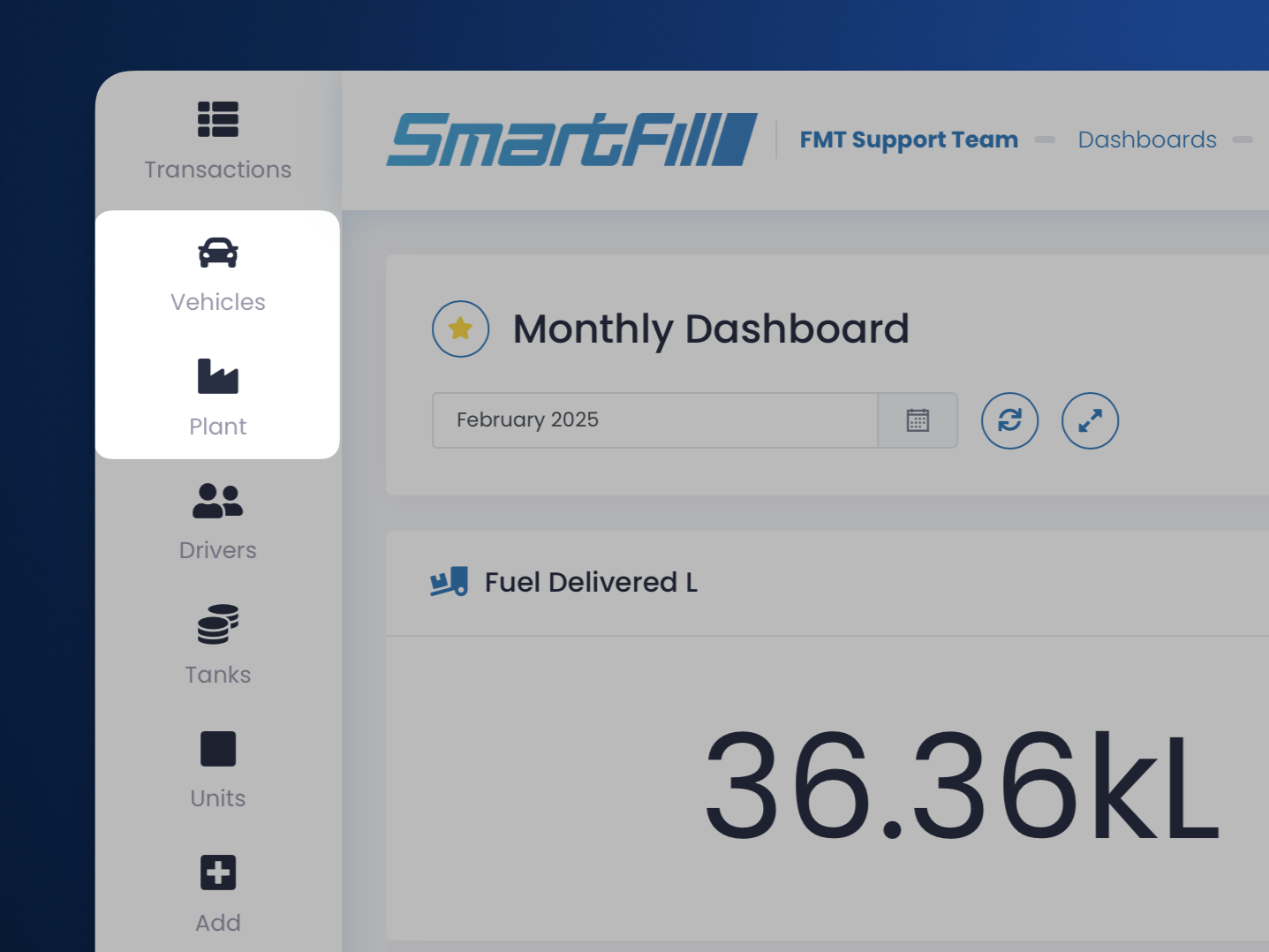
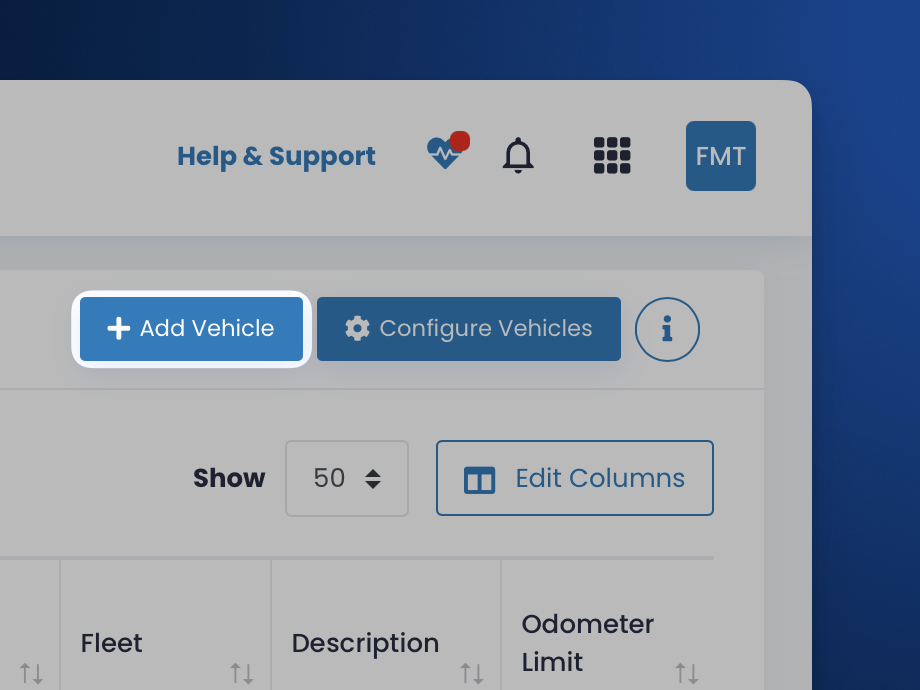
When you have loaded into the new Vehicle or Plant, click Add Vehicle or Add Plant in the top right of the web portal.
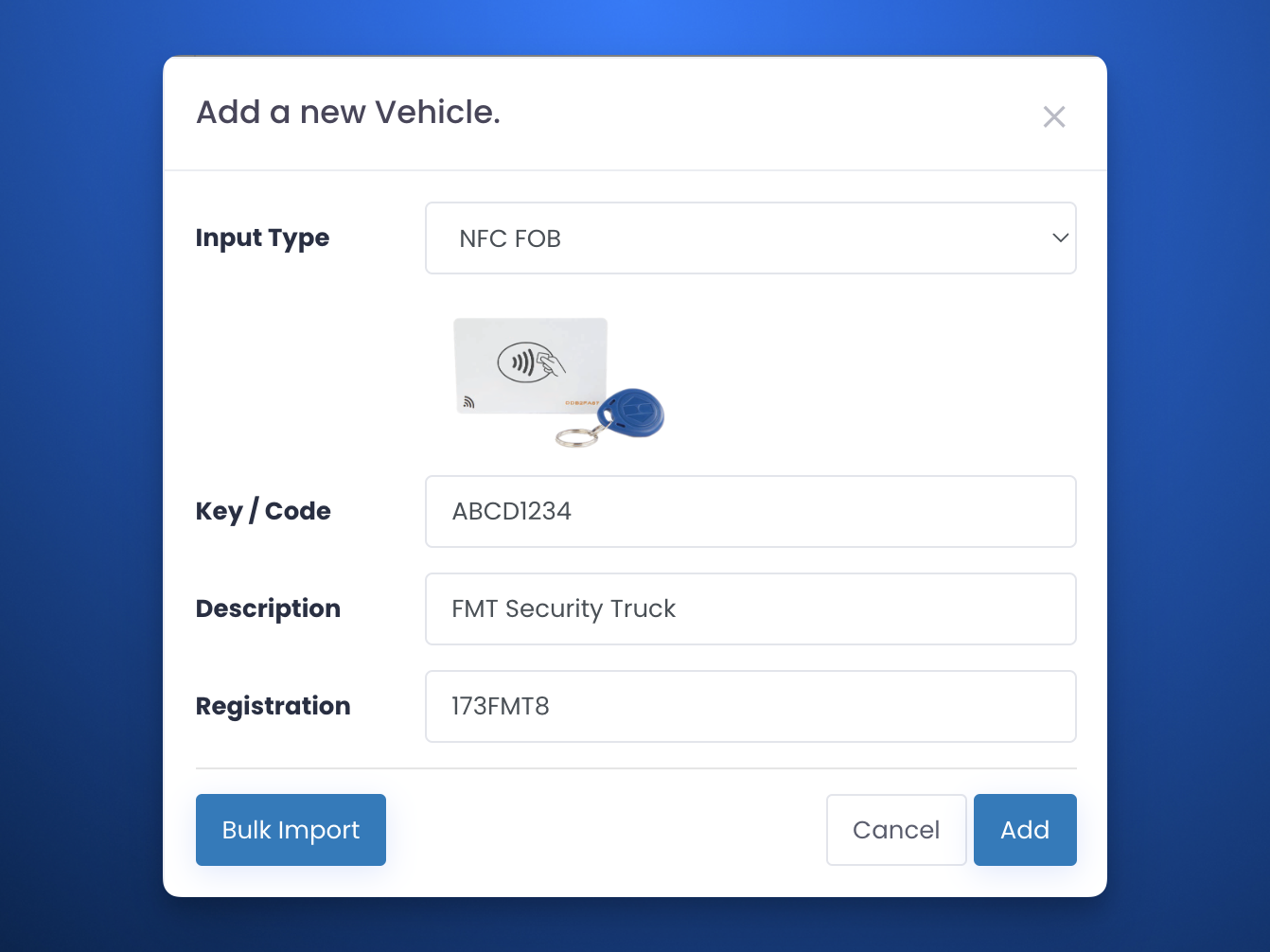
You will then be prompted to add the Vehicle's details in a new window. By default, we offer the following inputs;
- Input Type: The authorisation method that SmartFill will recognise at the system.
- Key / Code: The authorisation code that SmartFill will need to identify at the system.
- Description: A description for the Asset, used to identify during reconciliation.
- Registration: The registration of the Vehicle/Plant.
If you need to add more details for your Vehicle/Plant, learn how to add more columns to your assets.
Once your asset has been configured, press Add to confirm, and the asset will be added to the system.
Mon, 25 Aug, 2025 at 2:15 PM
Why is my SmartFill Unit Offline?
While the system is offline, no data will be lost, and will be uploaded once the system is back online.

Your system will continue to operate as expected and will not be down during the period it's offline.
Your SmartFill being offline can depend on several factors, which are different on a customer-by-customer basis.
This article covers how to troubleshoot and diagnose the unit being offline.
If you urgently need data from the SmartFill system, follow this article on how to export data via USB.Remote Troubleshooting
First, the best thing to do is to check your unit page for the status and model number of the unit. Take note of the last character of the model number.
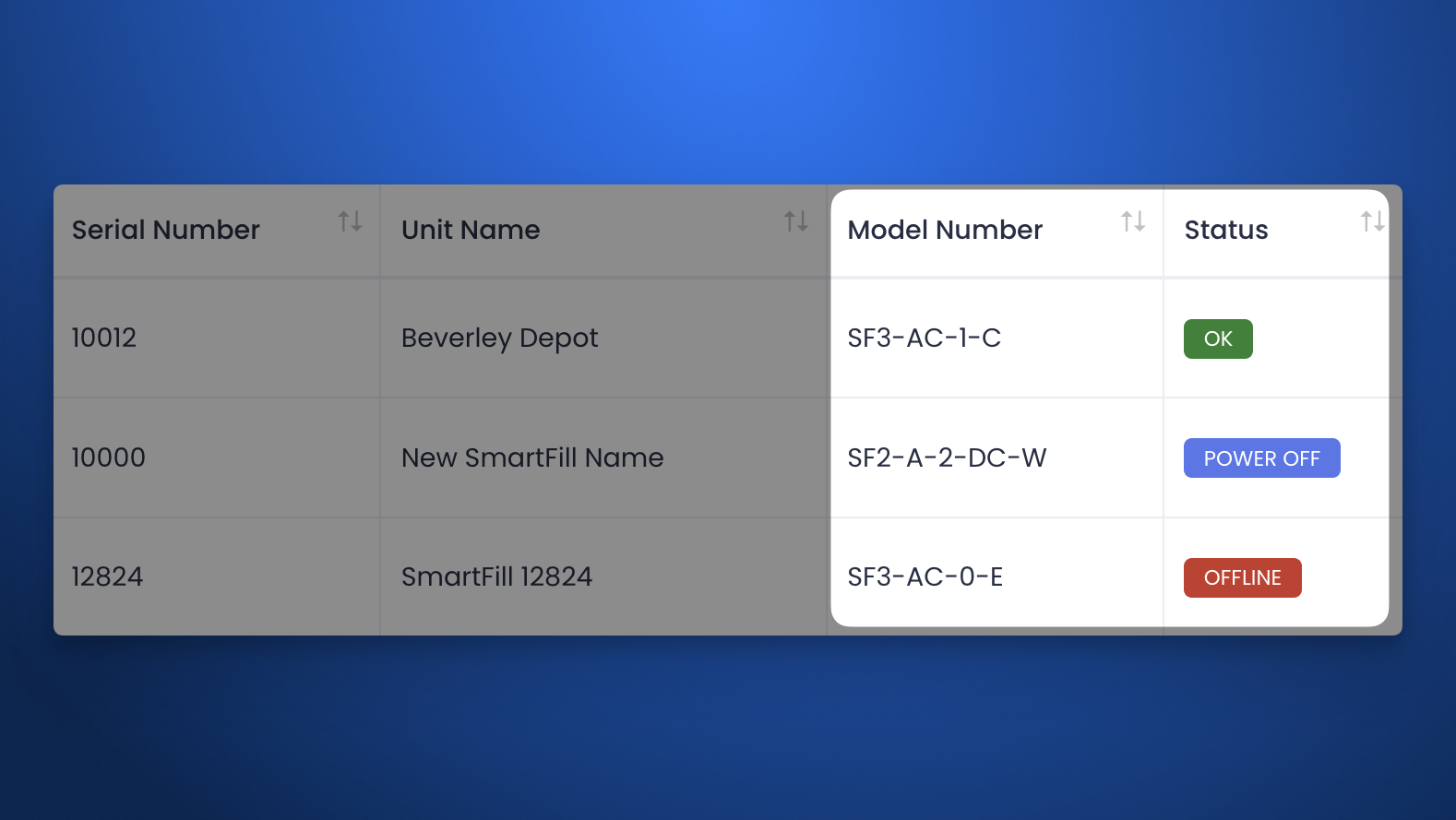
Using the table below, you may be able to diagnose what your potential issue could be.
| Last Character of Model Number | How is my SmartFill connecting? | Common Failure Points |
| C | 3G/4G Communication Module* | SmartFill software issue, SIM no longer active, Module upgrade required** |
| W | 2.4Ghz Wi-Fi Communication Module | Incorrect Network Configuration, obstructions blocking the signal, and Incorrect SmartFill Settings. |
| E | Ethernet Connection from a Third Party Device | Network Configuration Issue, SmartFill Software Issue, Incorrect Ethernet Configuration |
* 3G has been sunset in most parts of the world. Please check with your telecommunication provider if 3G is still available.
** Required for modules that only support 3G in areas where 3G is no longer available.
For 3G/4G users, check if your SIM Card is still active and has any remaining data. If not, see if recharging your SIM or swapping it for a new one fixes the issue.
For Wi-Fi users, check if any network settings have changed, such as a new password, new SSID, or upgrading from 2.4Ghz to 5Ghz. If so, you may need to change the configuration on SmartFill.
For Ethernet users, check if you can ping the system through your network. If you're using a cellular modem, check if the SIM is active and has no issues.
Thu, 14 Aug, 2025 at 12:10 PM
How to Export Data from SmartFill Manually
If your SmartFill unit is offline, you can still download the data manually via USB and upload it to your website.
Before you begin, you will need a USB drive with a capacity of 32GB or less and that is formatted to FAT32. Anything above 32GB and/or formatted differently will not work.
How to Export Data from the SmartFill Unit
- When at the physical unit, plug the USB drive into the USB port.
- At the unit, hold <CLR> and <ENT> until you see "Enter Admin or Installer PIN".
- Type in your Admin PIN and press <ENT>. By default, the Administrator PIN is 1234.
- Press <5> to access Unit, then <1> for "Export Data".
- Wait until the data has been exported, and remove the USB Drive.
- If you receive an error message, make sure that you have a USB that is 32GB or less, and has been formatted to FAT32. If issues still occur, reach out to our support team.
How to Import Data into the website
- Plug your USB drive into your computer, and confirm that you have a 1234web.dat file, where 1234 is replaced with your unit serial number.
- Log into your account at https://www.fmtdata.com/Login, and navigate to the Units page.
- On the Unit's page, click the "Import/Export" button on the unit from which you exported data.
- Select your file by dragging and dropping it into the Import section and clicking "Import." The data from the unit will then appear on your website.
Fri, 14 Mar, 2025 at 10:35 AM
Mass Import / Bulk Update Assets in FMTData
FMTData offers the ability to mass import assets into FMTData to help you save time and resources. Importing allows users to mass update assets or add new ones into the system with a few clicks./\
Before Importing Your File
Before you import new assets into FMTData, you must make sure you meet the below requirements;
- You must import the file in a Comma Separated Value (CSV) format.
- You can only import one authorisation type (NFC FOBs, SmartTags, Codes, etc) at a time. If you need to import multiple authorisation types, separate them into different files.
Importing into FMTData
In this article, we will use Vehicles as an example. However, the procedures shown are identical between Drivers and Plants.
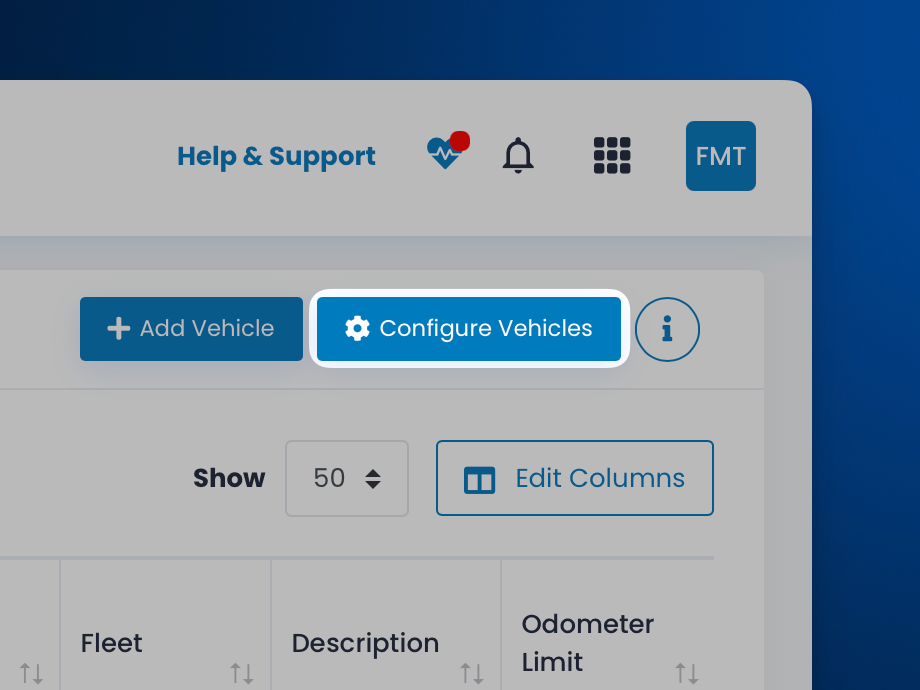
Click on Configure Vehicles.
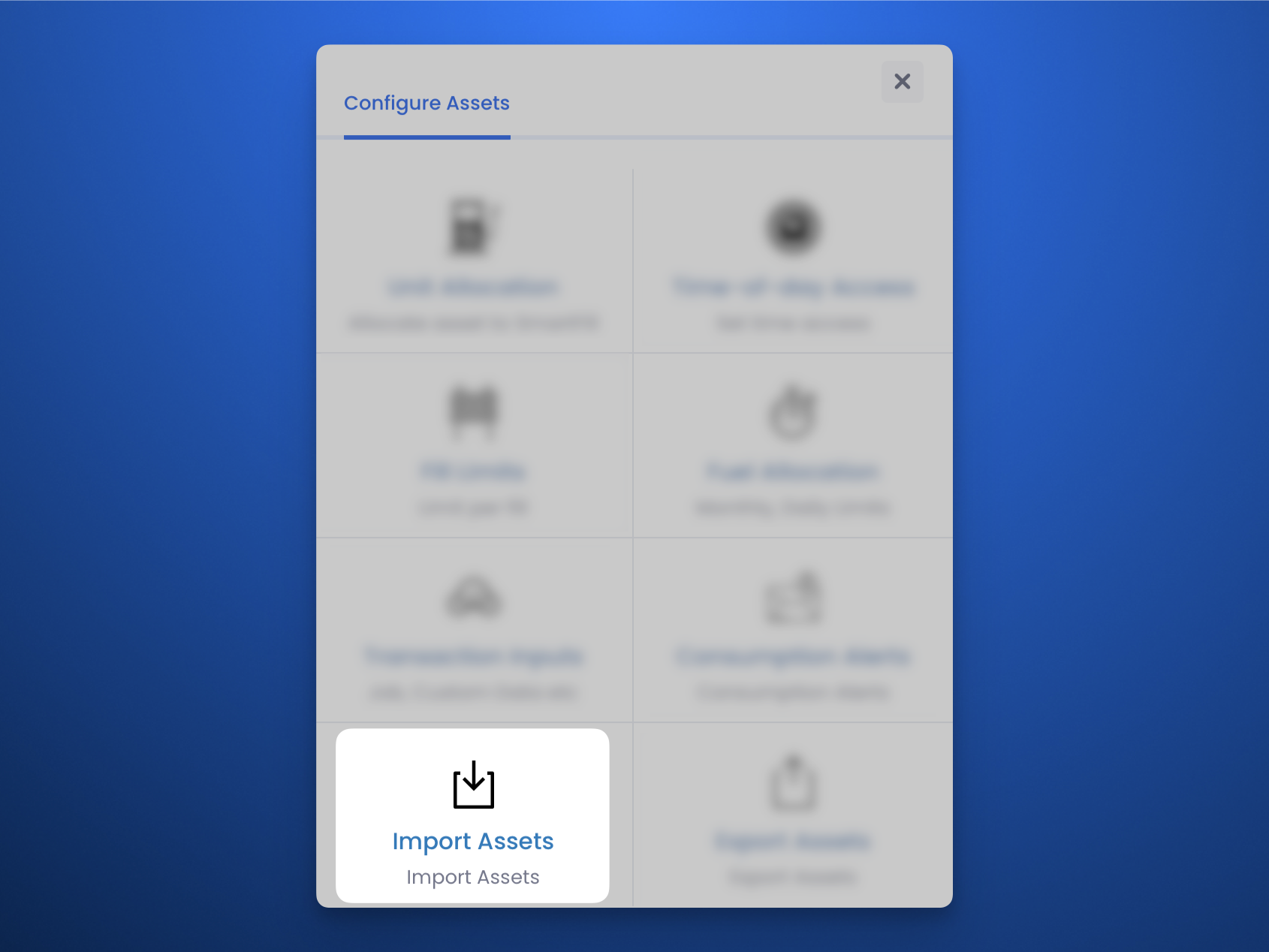
On the new pop-up window, click Import Vehicles.
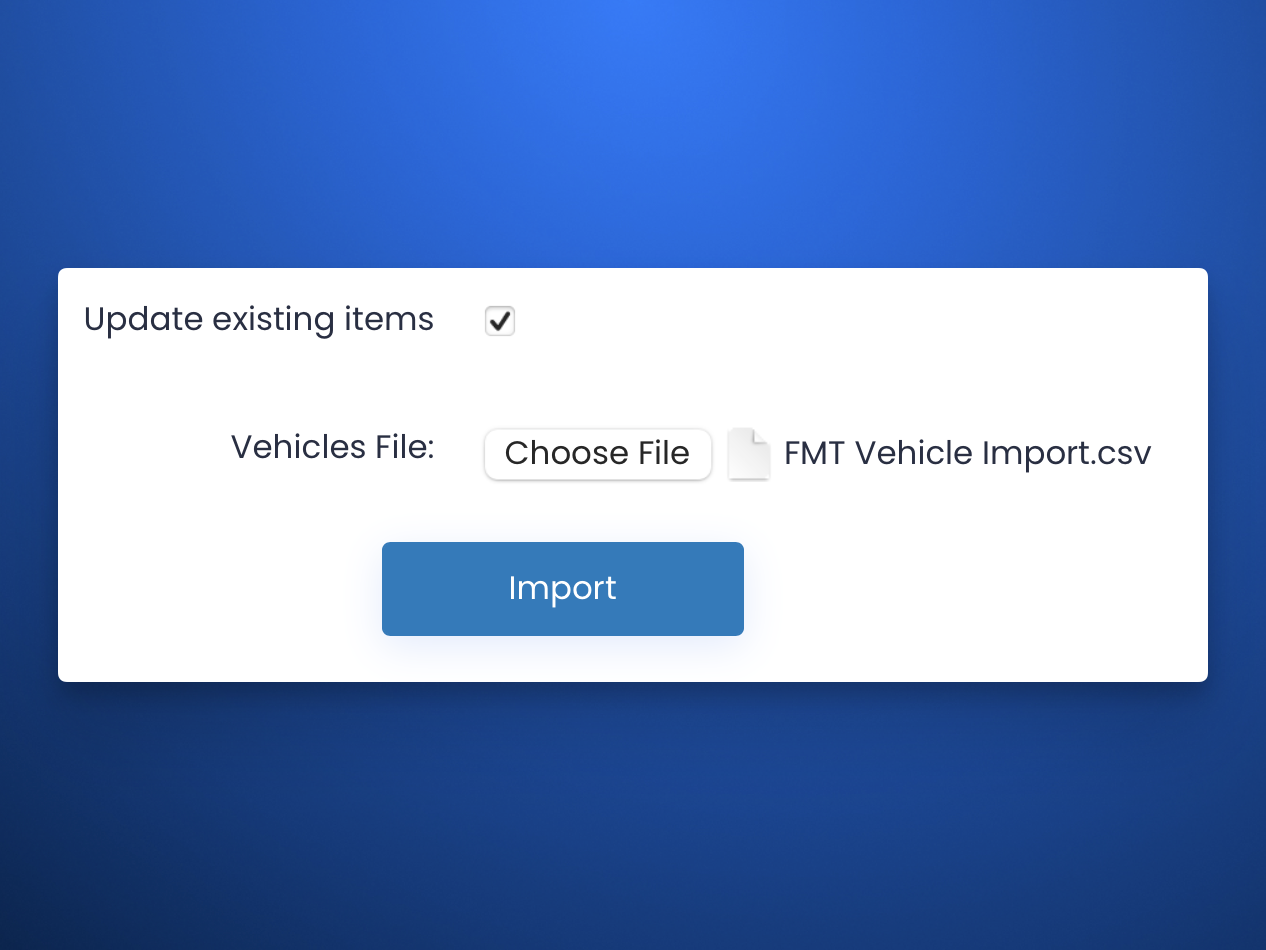
Select the file you want to import into the system and select Import.
If your CSV file contains assets that already exist inside FMTData, ensure that Update existing items is enabled if you wish to update those assets with new details.
On the Import Vehicles page, you'll need to;
- Select what columns FMTData will recognise (Highlighted Red).
- Select the header row, so that FMTData knows to ignore that row (Highlighted Blue)
- Select the authorisation type at the bottom of the screen (Highlighted Green)
If you leave a column as Unused, that column will be ignored, and will use the data it had previously (or left blank if it's a brand new asset).
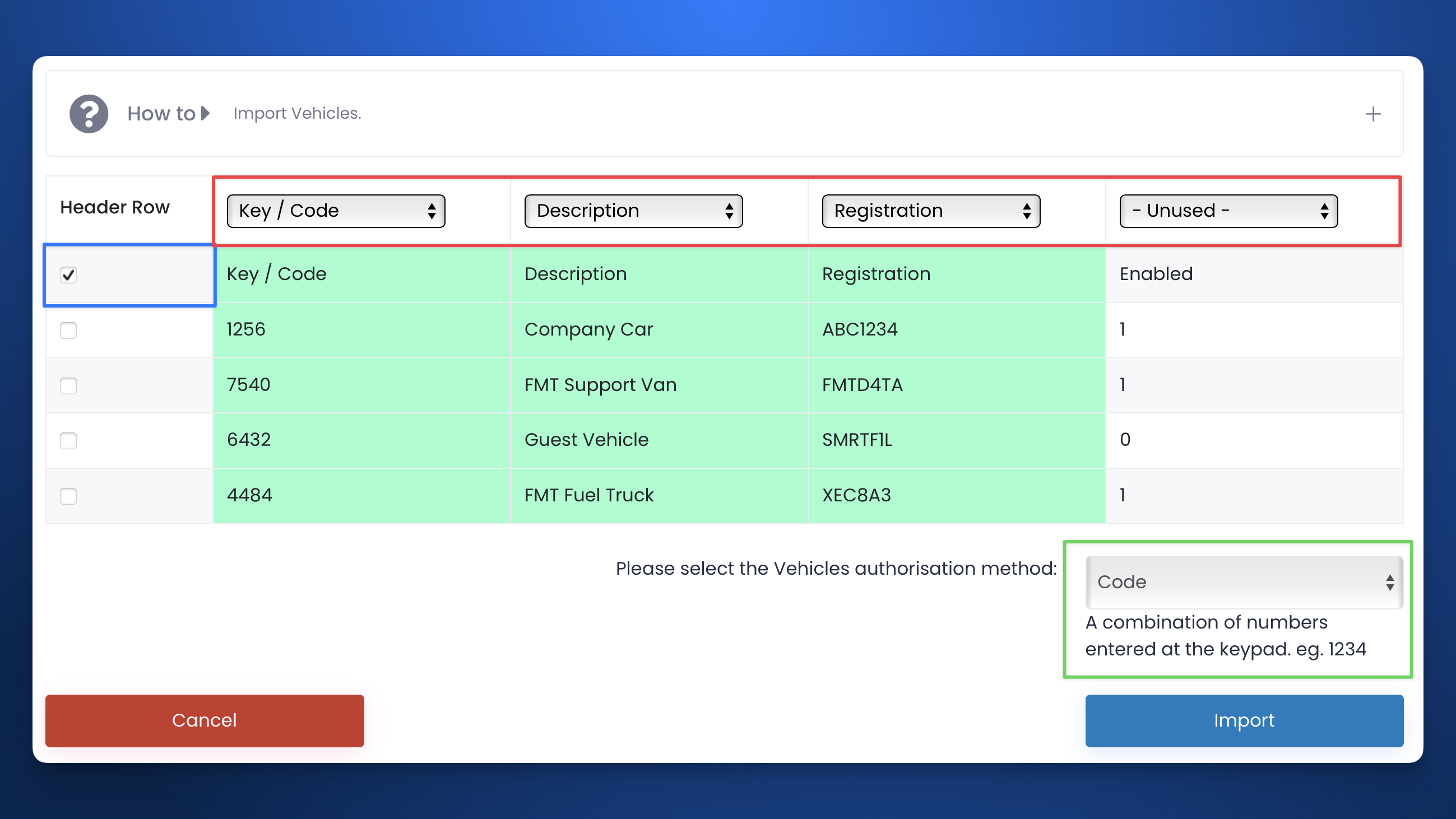
Press the Import button, and FMTData will upload the data into the web portal
If any error messages appear after the import, you may need to check if your CSV file is correctly configured. If you're not too sure what could be happening, reach out to our support team with the CSV file attached.
Fri, 15 Aug, 2025 at 11:05 AM
View more